April 2024

Decrypting Encrypted TLS Traffic Using Wireshark on Linux

Before we start, I have to clarify, this is not a way of “hacking” TLS to decrypt any encrypted traffic! This is (probably) not possible. What we will do in this tutorial is to temporarily extract the TLS session keys used in encrypting traffic going to the browser into a “TLS keys log file”, and then use this log file along with the captured pcap to decrypt the traffic and view it on Wireshark.

For this to work, you’ll need a browser such as Firefox, or Chrome, a Linux-based machine, and Wireshark.

First, make sure that you start Wireshark, but just don’t start capturing traffic yet. Then, close all open browser windows.

Second, use the following command:

export SSLKEYLOGFILE="/home/$USER/tlskeys.log"

This command, will instruct the OS to store all sessions keys in a file named tlskeys.log in the home folder of your user. there are a few things to note here;

This commands will work for this terminal session only. Once the terminal session windows is closed, the TLS keys will not be stored in the log file anymore. The storage of these keys applies to TLS keys of this process and all processes spawned from it only. this means that after running the command, if you start your browser from the GUI, the keys will not be stored. You need to start the browser from within the commands line. Before you do that, start capturing the traffic in Wireshark.

Now start your browser (such as Firefox) from the command line:

firefox &
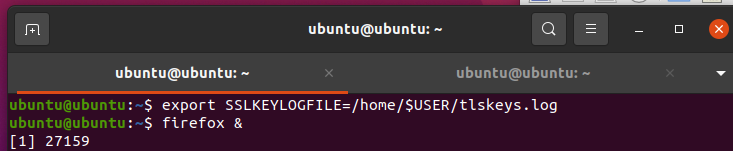
Visit an HTTPS based website like, google.com and go through searches or even try to sign in. Then, stop the packet capturing, and take a look at the tlskeys.log file.

cat tlskeys.log

You’ll see a few session keys for each session. It’d probably look something like this:
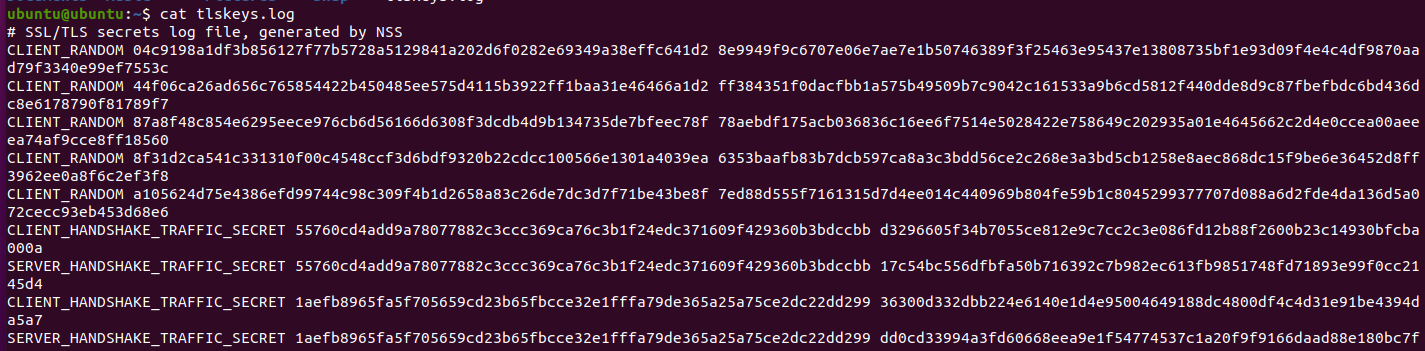
 

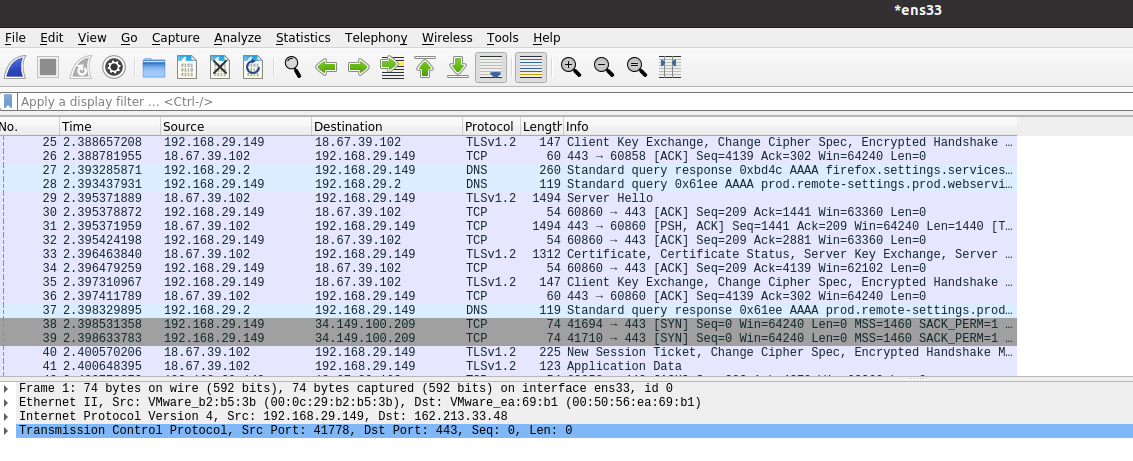
Now, if you look at the traffic captured by Wireshark, you’ll see that it is encrypted, like this:
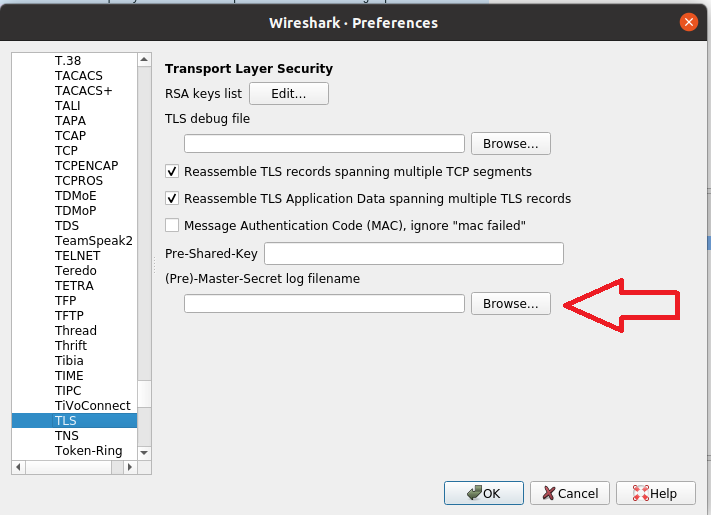
To use the TLS keys to decrpyt this traffic, go to Edit >> Preferences >> Protocols, and scroll down to get TLS. In the last field in the windows, you’l see “Pre-MasterSecret log filename”, click on “Browse…” next to it, and show Wireshark the location of the tlskeys.log file. Then, click “OK”.
Now, you’ll notice that the previously-encrypted TLS payload is now decrypted (mostly into HTTP2).
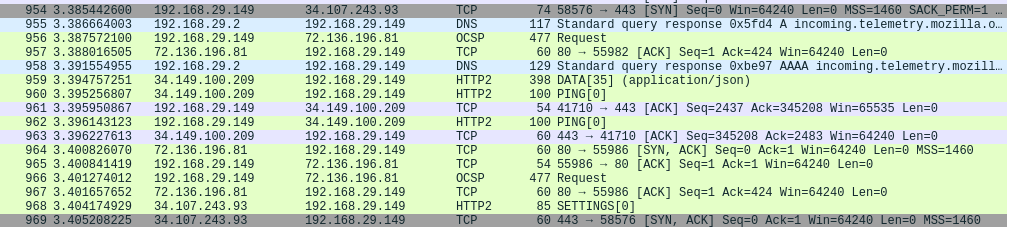
You’ll see that you’ll be able to extract a lot of HTTP objects that were not accessible before because of encryption.
 

How to Spoof a MAC Address in Linux

In some ethical hacking engagements, you might need to spoof the MAC address of a network interface card. This short list of steps help you do that:

1. Find the name of the interface you want to spoof the MAC of.

ifconfig

You’ll see interface names such as “eth0”, or “ens33”, depending on the Linux distro you’re using.

Note: If this command doesn’t exist, you can install the “net-tools” package through “apt”, “yum” or any other package manager you use.

2. Turn the interface off:

ifconfig ens33 down

Replace “ens33” with your interface name of choice.

3. Update the MAC address:

ifconfig ens33 hw ether 12:34:56:78:90:12

Replace the “12:34:56:78:90:12” with the MAC address of your choice.

4. Turn the interface on:

ifconfig ens33 up

That’s all!


Generating a Log file for Command Line Commands in Linux

This is one of these cases when you wonder why this isn’t there by default in all Linux-based systems. In many cases, it can be useful to look at the list of the command line commands that were used on a server, and perhaps look at the user accounts that were used to issue these commands. This could help accelerate forensic investigations and incident response. It could also help in identifying the scope of a breach.

In this short tutorial, we will use syslog services to capture all commands issued in the command line, the time of command issuance, the username of the account used, and if the command was issued using SSH, we will also capture the IP address that was used in this SSH session.

Step 1: Creating the log settings file, to tell the server where to store the log entries

Create a file named /etc/rsyslog.d/commands.confusing an editor of your choice, such as nano:

sudo nano /etc/rsyslog.d/commands.conf

Add the following two lines to the new empty file:

# Log every command executed by a user to a separate file
local6.* /var/log/commands.log

Save the file and exit. This will create a logger that would capture whatever you pass to local6 events and put it in the commands.log file.

Step 2: Configure your Bash shell to pass the information to the logger.

Edit your /etc/bash.bashrcfile to add these two lines:

# Set PROMPT_COMMAND to log every command to syslog
PROMPT_COMMAND='history -a >(logger -p local6.debug -t "[$USER] $SSH_CONNECTION")'
HISTCONTROL=null

The first command will tell bash to pass the required information to the logger called local6. The second command will tell the bash shell to capture all commands, including ones with spaces before them.

If you use other types of shell, such as zsh, or sh, make sure that you add the same two lines to their settings files to ensure that the log catches all commands used on all of these shells.

Step 3: Restarting services.

Restart syslog service:

sudo systemctl restart rsyslog

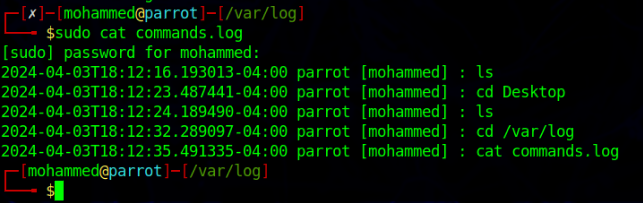
Close all open bash shell sessions, and start a new one. All of the commands types now will be captured in /var/log/commands.log file.

Example:

commands.log

Note: You might face a scenario where “logger” command needs to run with sudo to be able to capture the passed data.